Convert WebP Online: The 2026 Creator’s Format Playbook
Modern content moves between a dozen apps a day, and nothing stalls a workflow faster than an image format that one tool loves and another rejects. The simplest fix is to convert WebP online, swapping to or from JPG, PNG, and other formats in a single browser tab. This playbook is written for creators, marketers, and small business owners who need images that just work everywhere.
Instead of rehashing a single one-way conversion, we will treat WebP as a two-way street: when to convert into it for speed, and when to convert out of it for compatibility. Let’s build a format strategy you can actually stick to.
WebP in 2026: Why It Dominates the Web
WebP has become the default image format for fast websites because it shrinks file sizes dramatically while keeping quality high. Smaller images load quicker, and page speed directly influences both user experience and search visibility. That is why publishing platforms now output WebP automatically.
Yet the same efficiency that helps your site can trip you up offline. When you need to convert WebP online, it is usually because a social scheduler, email tool, or design app expects a more traditional format. Understanding both directions keeps you in control.
Which Direction Should You Convert?
The right move depends entirely on where the image is headed. Use this quick decision table before you convert anything.
| Destination | Recommended format | Why |
|---|---|---|
| Your website | WebP | Fastest load, best Core Web Vitals |
| Social media posts | JPG or PNG | Broadest platform support |
| Print or documents | PNG or TIFF | Lossless, print-ready |
| Logos with transparency | PNG or WebP | Alpha channel preserved |
| Email newsletters | JPG or PNG | Reliable across clients |
In short, convert into WebP for the live web and out of WebP for everywhere a human opens, edits, or shares the file.
How to Convert WebP Online Step by Step
A browser converter keeps the whole process fast and private. Follow these steps for a clean result.
- Open a trusted tool to convert WebP online in your browser.
- Upload your source image by dragging it onto the page.
- Choose your target format, such as JPG or PNG.
- Download the result and verify it opens in the destination app.
No software installs, no watermarks, and transparency is preserved when you convert to a format that supports it.
Batch Conversion Saves Hours
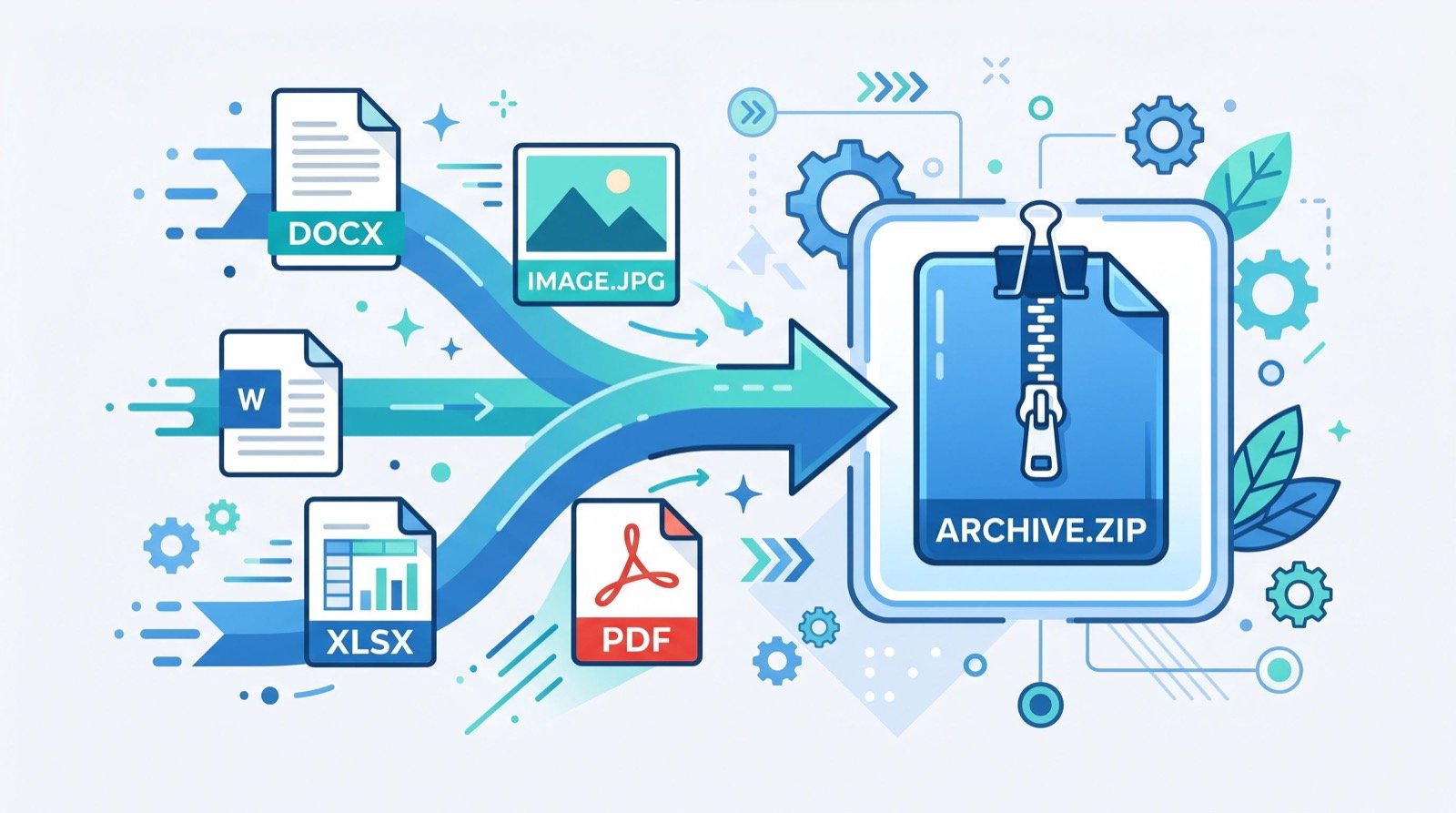
If you manage a media library, convert in bulk rather than one file at a time. Many online converters accept multiple uploads and return a single zip. For a weekly blog or an online store, batching turns a tedious chore into a two-minute task.
Quality and Compression Explained
WebP supports both lossy and lossless modes. Lossy WebP is tiny and ideal for photos on the web, while lossless WebP rivals PNG for graphics. When you convert, remember that you can never recover detail that lossy compression already removed, so always keep a high-quality master file.
The MDN image format reference is an excellent, vendor-neutral resource that breaks down which format suits which job. Bookmark it alongside your converter for quick decisions.
Building a Repeatable Image Workflow
Consistency beats cleverness. The approach our reliable local experts use is to keep one high-resolution master per image and generate formats on demand from it.
- Store masters in a lossless format like PNG or TIFF.
- Export WebP for the website at publish time.
- Convert to JPG or PNG for social and email as needed.
- Name files descriptively so you never reconvert by mistake.
Visual branding goes beyond images, too. When you design social graphics, you can add stylish headlines with a fancy text online generator to make captions and thumbnails pop without opening heavy design software.
Documenting this workflow in a one-page guide pays off quickly. New team members follow the same steps, freelancers deliver assets in the right formats, and nobody wastes an afternoon hunting for the original of an image that was only ever saved as a compressed WebP. A small amount of structure upfront removes a surprising amount of friction later, and it keeps your brand looking consistent across every channel you publish to.
How Format Choice Affects Page Speed and SEO
Images are often the heaviest part of a web page, so format directly shapes how fast a site loads. In 2026, Google continues to weigh Core Web Vitals, and the Largest Contentful Paint metric frequently depends on a hero image. Serving that image as a lean WebP rather than a bulky PNG can shave precious milliseconds off load time.
Faster pages keep visitors engaged and reduce bounce rates, which indirectly supports your rankings. This is the core reason platforms convert uploads to WebP automatically. When you plan a content workflow, treat WebP as the delivery format for anything that appears on a live page.
That said, do not sacrifice compatibility for a few kilobytes where it does not matter. An image destined for a one-time email blast gains nothing from WebP if half your subscribers use clients that cannot render it. The skill is matching each export to its real audience, which is exactly why a flexible converter belongs in every creator’s toolkit.
Naming and Alt Text Still Matter
Whatever format you choose, descriptive filenames and alt text help both accessibility and search engines. Name a converted file something like blue-widget-product-shot.png rather than a random string. Add concise, accurate alt text that describes the image. These small touches compound across a site and improve both usability and discoverability.
Frequently Asked Questions
Is it free to convert WebP online?
Yes. Trustworthy web tools let you convert to and from WebP at no cost, with no account required. Look for converters that process files quickly and do not add watermarks.
Can I convert WebP back into WebP with different settings?
Some tools let you re-export WebP at a different quality or switch between lossy and lossless. This is useful for shrinking an already-large WebP, though it cannot restore detail lost in earlier compression.
Does converting WebP lose transparency?
Only if you convert to a format without an alpha channel, like JPG. Convert to PNG or keep WebP to preserve transparent backgrounds for logos and overlays.
Which format is best for social media?
JPG works well for photos and PNG for graphics with text or transparency. Both are universally supported, so convert WebP online to one of them before uploading to any social platform.
Conclusion
WebP is the backbone of a fast website, but real workflows demand flexibility. Learn to convert WebP online in both directions, keep a lossless master, and match each export to its destination. Build that habit once and your images will load fast on the web and open flawlessly everywhere else throughout 2026. Try a converter now and streamline your next project.